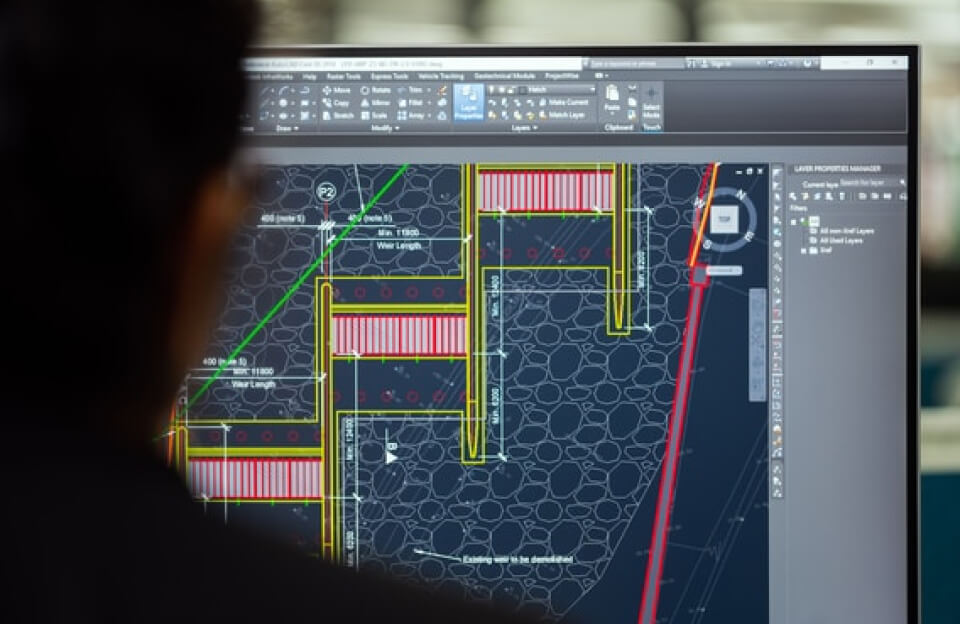
“Life on CAD” (Computer-Aided Design) is defined by the constant, repetitive execution of fundamental drawing, editing, and viewing commands. The “shortcut” isn’t a single key, but the mastery of keyboard commands and aliases that allows designers to dramatically reduce reliance on the graphical interface (the mouse and menus).
The ultimate goal in CAD is to keep the left hand on the keyboard for commands and the right hand on the mouse for precision.
🔑 The Most Life-Changing Shortcut in CAD
The single most critical shortcut is the ability to Repeat the Previous Command.
The Command: SPACEBAR or ENTER
- Functionality: In AutoCAD and many other CAD programs, hitting the Spacebar or Enter key will immediately execute the last command you used.1
- Why it’s Crucial: A large percentage of a designer’s time is spent repeating the same few commands: drawing lines, offsetting, trimming, or moving objects. This single shortcut allows you to execute these commands without lifting your hands to the menu or typing the full command again, saving countless hours over a career.
🚀 Essential Shortcuts for CAD Productivity
Beyond the SPACEBAR repeat function, here are the most important shortcuts and command aliases to learn, categorized by their function (based primarily on AutoCAD, the most common CAD platform):
1. Creation and Modification (Single-Key Aliases)
These are the commands you use hundreds of times a day. Typing one or two letters and hitting Enter is faster than finding the icon.
| Alias | Full Command | Function |
| L | LINE | Creates a straight line segment. |
| C | CIRCLE | Creates a circle. |
| E | ERASE | Deletes selected objects. |
| CO | COPY | Copies objects. |
| M | MOVE | Moves objects a specified distance. |
| TR | TRIM | Cuts objects using other objects as cutting edges. |
| O | OFFSET | Creates parallel lines, curves, or concentric circles (essential for walls, curbs, etc.). |
2. Precision and Viewing Toggles (Function Keys)2
These keys instantly turn on or off crucial drafting modes for accuracy and speed.3
| Shortcut | Function | Purpose |
| F3 | OSNAP (Object Snap) | Toggles snapping to exact points (Endpoint, Midpoint, Center). Crucial for accuracy. |
| F8 | ORTHO Mode | Constrains cursor movement to be strictly horizontal or vertical (0, 90, 180, 270 degrees). Crucial for square corners. |
| F7 | GRID Display | Toggles the background grid visible or hidden. |
| F12 | DYNMODE (Dynamic Input) | Toggles the input boxes that appear next to the crosshairs. |
3. Workflow and File Management (Ctrl Combinations)
These universal commands are just as vital in CAD as in word processing.
| Shortcut | Function | Importance |
| Ctrl + S | SAVE | The most important command. Save frequently to prevent catastrophic work loss. |
| Ctrl + Z | UNDO | Undoes the last action. |
| Ctrl + Y | REDO | Redoes the last action. |
| Ctrl + 1 | PROPERTIES | Toggles the Properties Palette, used to instantly edit object properties (layer, color, scale, etc.). |
The real “life on CAD” shortcut is recognizing which commands you use most often and customizing the command aliases to be as easy to reach as possible with your non-mousing hand.