
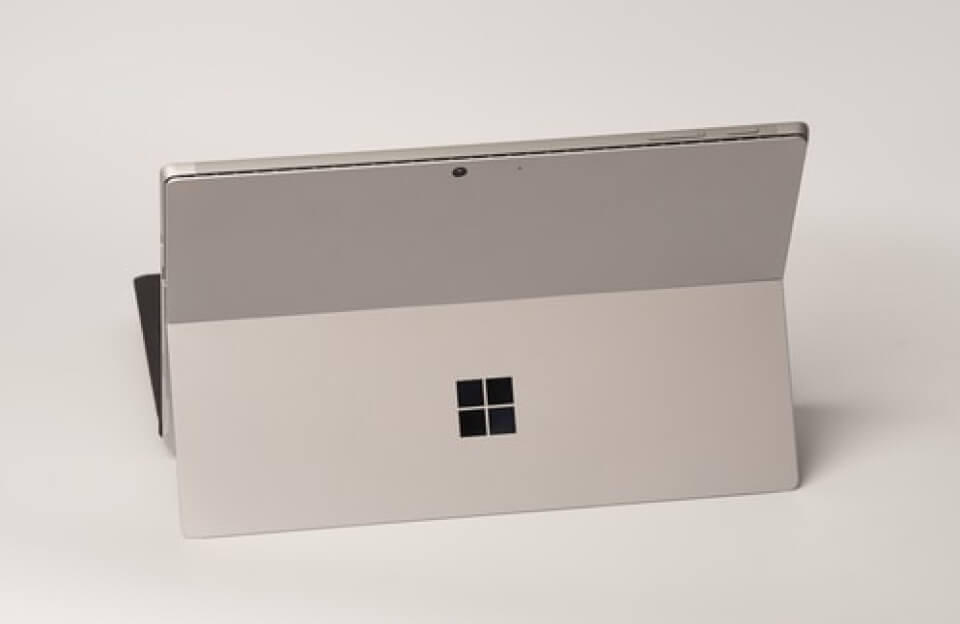
Microsoft Surface devices running Windows 11 offer robust tools and features specifically designed to help families manage their teenagers’ digital experiences, balancing the need for powerful productivity with safety and healthy habits.1
The central control system for this is the Microsoft Family Safety suite.
Here is an overview of the key benefits and controls for families of teens using a Microsoft Surface device:
🛡️ Safety and Parental Controls (Microsoft Family Safety)
The Microsoft Family Safety app (accessible on the web and via Android/iOS apps) allows parents (Organizers) to set controls and monitor activity on their teen’s Windows, Xbox, and Android devices.2
| Feature | How it Helps Families of Teens |
| Screen Time Limits | Set specific daily or weekly limits on device usage or for individual apps and games (like limiting gaming time but allowing unlimited time for Word). Limits can be adjusted remotely. |
| Content Filters | Filter websites and searches to block adult or inappropriate content when using Microsoft Edge. You can block or unblock specific websites and applications. |
| Activity Reporting | View weekly activity reports that summarize the teen’s activity, including time spent on apps and games, website visits, and search terms. This helps start conversations about online habits. |
| Spending Management | Add money to the teen’s Microsoft account and set spending limits for the Microsoft Store (for apps, games, and movies). You can also require approval for all purchases. |
| Location Tracking | (Requires the Family Safety mobile app) Track the teen’s location, which can be useful for coordinating pick-ups or ensuring they arrived at school safely. |
📚 Educational and Productivity Benefits
The Surface line’s design and operating system are highly optimized for high school and college-level work.3
- Versatile Form Factor: Surface devices (like the Surface Pro or Surface Laptop) offer the power of a full Windows PC but are lightweight and highly portable.4 The 2-in-1 capability of the Surface Pro allows teens to switch between a traditional laptop for research papers and a tablet mode with a Surface Pen for note-taking, drawing, and annotating PDFs.5
- Full Desktop OS (Windows 11): Teens get access to the full versions of essential software, unlike mobile operating systems. This is crucial for:
- Complex Projects: Running video editing software, CAD, or advanced statistical programs.
- Coding: Using full IDEs (Integrated Development Environments) for programming classes.
- Microsoft 365 Integration: Surface is optimized for the Microsoft ecosystem.6 Students can often get Microsoft 365 (Word, Excel, PowerPoint, OneNote, Teams) for free or at a deep discount through their school.7 OneNote is an extremely powerful tool for organizing notes, lectures, and research across subjects.8
- AI-Powered Tools (Copilot): Windows 11 and Microsoft 365 feature integrated AI tools (like Copilot) that can assist teens with:9
- Summarizing long articles or research papers.
- Generating study notes and outlines.10
- Helping with translation for language classes.
🛍️ Saving on the Purchase
Microsoft offers direct financial incentives for families buying devices for students:
- Education Discount: Students and parents purchasing for students often qualify for a 10% discount on select Surface devices and accessories through the Microsoft Store.11
- Free Software: Many schools provide students with free access to Microsoft 365 Education (which includes the essential productivity apps) with their school email address.12
Would you like to know the steps to set up a Microsoft Family Group and activate these parental controls?